Can You Swap Multiple Faces in One GIF?
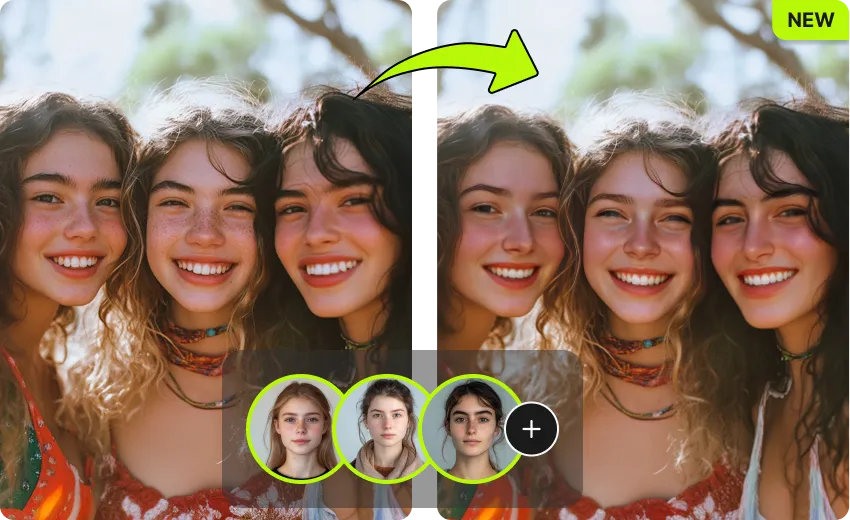
A group GIF can be fun until you want to replace more than one face. Maybe it’s a birthday meme, a reaction GIF for your team chat, or a short animated clip with two people turning toward the camera. The good news is yes, you can swap multiple faces in a single animated GIF, but the result depends on face clarity, motion, lighting, and the tool you use.
I’ve tested this kind of edit on short GIFs where two or three faces appear across 20 to 80 frames. The easiest results come from clips where each person’s face stays visible, doesn’t overlap too much, and doesn’t spin away from the camera. A browser tool like GIF Face Swap is built for this kind of quick edit because it handles the animated format instead of forcing you to split the GIF into still images yourself.
The main thing to understand is that a GIF isn’t one picture. It’s a stack of frames played in order. A face swap tool has to detect faces across those frames, match each target face with the replacement you choose, then rebuild the GIF so the animation still looks smooth. That’s why swapping one face is usually simple, while swapping several faces asks more from both the tool and the source GIF.
If you’re new to face swapping, it helps to start with a simple file before trying a busy party clip or movie scene. I usually test with a GIF under five seconds first, then move to longer or more crowded ones once I know the faces track well. Tools from EasyFaceSwap are useful for this because you can work fast, check the output, and make a better version without setting up editing software.
Can you swap multiple faces in the same animated GIF?
Yes, you can swap multiple faces in one animated GIF when the tool supports multi face detection or lets you choose more than one face target. In practice, this means the software scans the GIF frame by frame, finds each face, and applies a chosen replacement face to each person. If there are two people in the GIF, you can often replace both. If there are three or more, it may still work, but accuracy becomes more sensitive to movement and image quality.
The best results happen when each person is easy to tell apart. If two faces cross over each other, turn sideways, get blocked by hands, or leave the frame, the tool may lose track. That can create flicker, mixed faces, or a swap that looks good in one frame and strange in the next. This isn’t always a failure of the tool. It’s often a sign that the GIF doesn’t give enough visual information in every frame.
A clean multi face GIF usually has steady camera movement, decent lighting, and faces that are at least medium sized. Tiny faces in the background are hard to map because there aren’t enough pixels to work with. If your GIF was heavily compressed before upload, that also hurts the final result because the face edges are already soft or blocky.
What makes multi face GIF swapping harder than a photo swap?
A photo has one moment to solve. A GIF has many moments, and the swap needs to stay believable from frame to frame. That’s the real challenge. If the replacement face shifts position, changes size, or changes color too much between frames, your eye catches it right away because motion makes small errors more obvious.
There’s also the problem of expression. In a still photo, a neutral face can sometimes fit even when the original person is smiling slightly. In a GIF, the person may smile, blink, talk, or turn. A good swap has to follow those movements enough to feel natural. It doesn’t need to be perfect for a meme, but it does need to avoid obvious jumping.
File limits matter too. GIFs can be large even when they’re short, especially if they have many colors or a high frame count. Some online tools compress the result so the file is easier to download and share. That’s useful, but compression can soften detail. If you want the cleanest output, start with the clearest GIF you can find rather than trying to fix a low quality one later.
| GIF condition | Likely result | What to do |
|---|---|---|
| Clear front facing faces | Smoothest swap | Use as your first test |
| Side angles or fast turns | Some flicker possible | Try a shorter GIF segment |
| Faces overlap or leave frame | Tracking may fail | Pick a cleaner clip |
| Low resolution GIF | Soft or messy details | Use a larger source file |
| Many people in frame | Mixed accuracy | Swap the main faces only |
How do you prepare a GIF before swapping several faces?
Start by choosing the right moment. A short, simple GIF often beats a longer, chaotic one. I’ve had better results from three second clips with clear faces than from ten second clips where people move in and out of frame. If the best part of the GIF is only a small section, trim it first if your workflow allows it.
Next, check the replacement faces. Use clear front facing images with good lighting and no heavy filters. If one replacement face is sharp and another is dark or angled, the final GIF may look uneven. The tool can only work with the details you give it. A bright, natural portrait usually blends better than a cropped social media picture with shadows across the eyes.
It also helps to decide which faces matter most. In a crowded GIF, you may not need to swap every visible person. Swapping the two main faces cleanly usually looks better than forcing six weak swaps. Viewers focus on the central action, so spend your effort there.
If the GIF has text, stickers, or fast camera shake, expect more trial and error. These elements don’t stop a face swap by themselves, but they can make the final image feel busier. When I’m making a GIF for a joke, I’d rather have a slightly simpler clip with clean faces than a famous reaction GIF that’s too blurry to hold the swap well.
Will the swapped GIF still look natural?
It can look natural enough for sharing, jokes, messages, and light content, but “natural” depends on your standard. A funny group chat GIF doesn’t need the same polish as a film shot. Most people judge GIFs quickly, so if the face stays stable and the expression roughly matches, the result will feel good.
The biggest giveaway is flicker. That happens when the swapped face changes shape, tone, or placement across frames. Another giveaway is poor blending around the jaw, hairline, or cheeks. GIF compression can make this more noticeable because it reduces fine detail and color range. If your final GIF looks strange, the first thing to try is a different source GIF, not endless tweaking.
Lighting is another big factor. If the original person is under blue stage lights and your replacement photo was taken in warm sunlight, the swap may look pasted on. Some tools adjust color and tone automatically, but they can’t always overcome extreme differences. Try to match the direction and brightness of the original scene as much as possible.
Face angle matters just as much. A straight on replacement face placed onto a strong side profile can look flat. For multi face GIFs, this problem multiplies because each target person may be facing a different way. If possible, use replacement photos that are simple, centered, and easy for the tool to adapt.
Is it safe and legal to swap multiple faces in a GIF?
It can be safe and legal, but context matters. Swapping faces for a private joke, a parody, or your own creative project is very different from making misleading content about a real person. You should have permission when using someone’s face in a way that could embarrass them, harm their reputation, or imply they did something they didn’t do.
For work, school, or public posting, be extra careful. A face swapped GIF can spread fast, and people may not understand it was made as a joke. If the person is a friend or coworker, ask first. If the person is a public figure, stay clearly in parody or commentary territory and avoid making the clip look like real evidence.
Privacy also matters when uploading images. Use tools you trust, avoid uploading sensitive photos, and don’t use private images of other people without consent. If a tool explains how uploads are handled, read that before using personal photos. For casual meme making, choose images that people are comfortable sharing.
The safest rule is simple: don’t use face swapping to deceive, shame, impersonate, or harass. The technology is fun when everyone understands the joke. It becomes risky when the person in the GIF didn’t agree to it or when viewers might believe the edit is real.
The takeaway is that multi face GIF swapping is very possible, but the source material decides most of the outcome. Use a short GIF with clear faces, pick clean replacement photos, and focus on the main people in the scene instead of every background face. Expect a little trial and error, especially when faces turn, overlap, or move fast.
For most casual uses, you don’t need advanced video editing skills. You need a good GIF, sensible face choices, and realistic expectations. When those pieces line up, swapping multiple faces in a single animated GIF can be quick, funny, and surprisingly convincing.